Step 5: Execute Build Pipeline
Update the catalog_rhel.json file and execute the Omnia BuildStreaM build pipeline through GitLab. This procedure covers catalog modifications, pipeline triggering (automatic and manual), and verification of pipeline status and job execution.
The BuildStream build pipeline automates the creation of diskless images based on catalog specifications. The pipeline consists of four sequential stages:
parse-catalog: Parses and validates the catalog file for build requirements
generate-input-files: Generates input files and configuration data for image building
create-local-repository: Creates and configures the local repository for build artifacts
build-image: Builds the diskless images based on catalog specifications
The build pipeline is automatically triggered when you update the catalog_rhel.json file in the GitLab repository, or can be manually initiated through the GitLab interface.
Note
Do not cancel a running GitLab pipeline or stage. Cancellation prevents some pipeline steps from executing, which leaves the BuildStreaM job in an intermediate, inconsistent state. Note that backend BuildStreaM tasks already in progress will continue running to completion regardless of the cancellation.
Prerequisites
Before updating catalogs and checking pipelines:
Deploy and Configure BuildStreaM Container on OIM Node (see Step 3: Prepare the Omnia Infrastructure Manager)
GitLab deployment for BuildStreaM is completed (see Step 4: Deploy GitLab for BuildStream)
Confirm that you can access GitLab project repository
Procedure
Go to the GitLab project URL:
https://<gitlab_host>:<gitlab_https_port>/root/<gitlab_project_name>
Go to Code → Repository.
Locate the catalog file
catalog_rhel.json.Modify the
catalog_rhel.jsonfile to define your build requirements.
Note
Ensure that the catalog file is updated with valid functional group names, architecture types, operating system types and versions, and package types. The pipeline fails if invalid details are provided.
- The following are the supported values:
Functional group names: For supported functional group names, see Functional Groups.
Architecture type:
x86_64andaarch64.OS type:
RHEL, see supported OS types and versions.OS version:
10.0, see supported OS types and versions.Package types:
rpm,rpm_repo,image,iso,tarball,pip_module,git,manifest.
Trigger the build pipeline by committing and pushing the catalog changes. The pipeline triggers automatically when catalog changes are committed. This pipeline can also be executed manually through the GitLab UI. See Execute Build Pipeline Manually for detailed instructions.
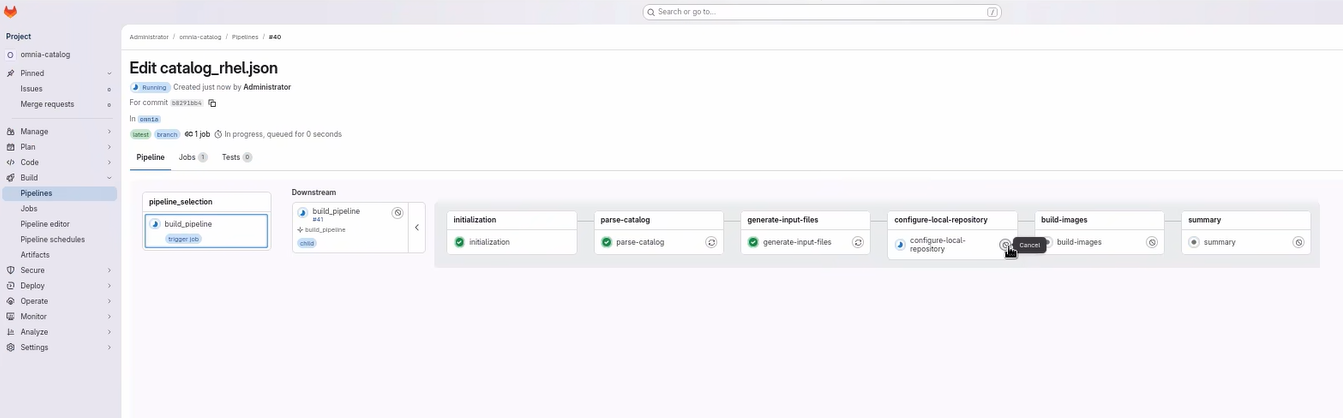
Monitor the pipeline progress to ensure it completes successfully. See Monitor Pipeline Progress for detailed instructions.
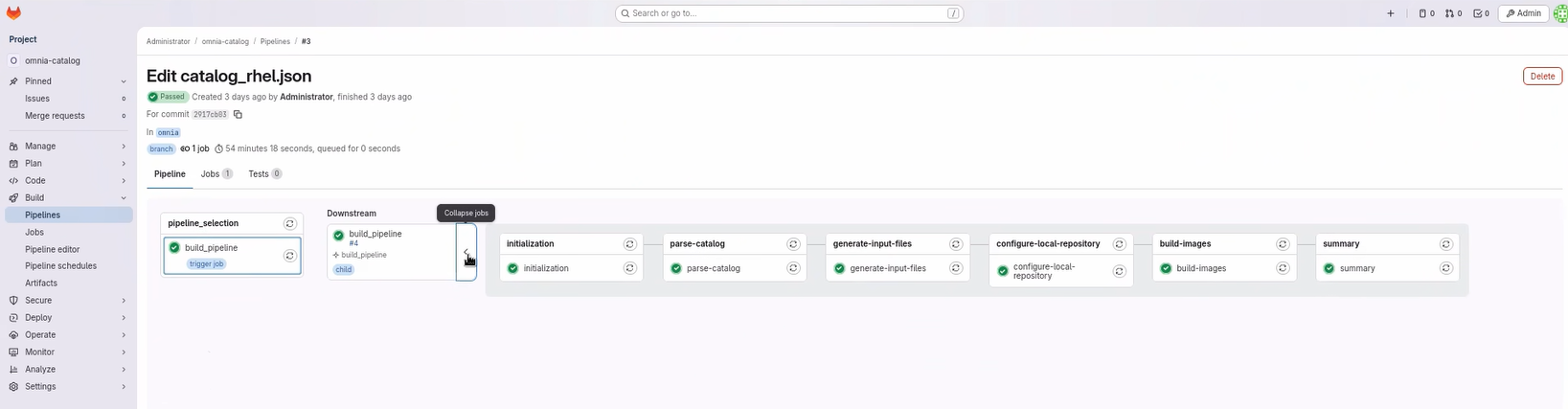
Note
Currently, BuildStreaM supports only one catalog file and one pipeline trigger. BuildStreaM pipeline behavior is controlled by the GitLab CI/CD configuration in your environment.
Each pipeline processes the catalog changes independently and builds the specified images based on the catalog requirements. Once a pipeline execution is complete, users can modify the catalog and re-trigger the pipeline as needed. However, multiple pipeline triggers cannot be executed simultaneously.
Execute Build Pipeline Manually
To manually execute the build pipeline, follow these steps:
Procedure
Review the pipeline logs in GitLab to check the current status.
Navigate to Build → Pipelines.
Click on the desired pipeline.
Click on the stage to view logs.
Update the input configuration files in the GitLab repository.
Navigate to the
input/folder in the GitLab repository.Edit the relevant configuration file.
Commit and push the changes.
For detailed descriptions of the configuration parameters in the configuration files, see ../reference/configuration-tables.
Manually trigger the pipeline with the updated parameters.
Navigate to Build → Pipelines.
Click New Pipeline.
In the Run new pipeline dialog box, enter the variable name as PIPELINE_TYPE and enter the value as build.
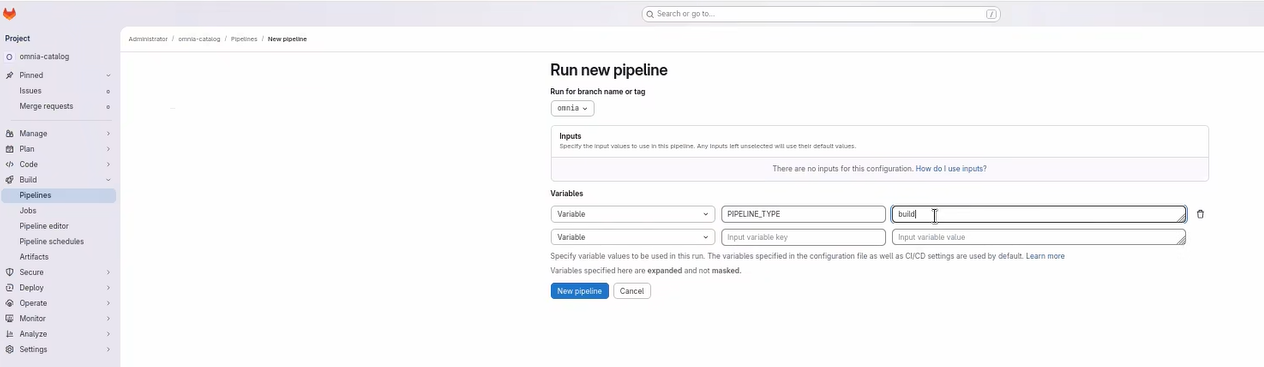
Click Run Pipeline to execute the build pipeline.
Monitor the pipeline progress to ensure it completes successfully. See Monitor Pipeline Progress for detailed instructions.
For troubleshooting common pipeline issues, see Troubleshooting BuildStreaM Pipeline Issues.
Monitor Build Pipeline Progress
Monitor the build pipeline progress through the GitLab web interface to track stage execution and identify any issues.
Navigate to Build → Pipeline.
Click on the running pipeline to view details.
- Monitor each stage as it progresses:
parse-catalog: Parses and validates the catalog file for build requirements
create-local-repository: Creates and configures the local repository for build artifacts
generate-input-files: Generates input files and configuration data for image building
build-image: Builds the diskless images based on catalog specifications
- Review the stage status indicators:
 Green checkmark: Stage completed successfully
 Red X: Stage failed (click for error details)
 Blue circle: Stage currently running
If any stage fails, review the error logs by clicking on the failed job.
The following image shows the BuildStreaM pipeline is currently running and the stages are being executed:
Note
The build pipeline uses the catalog file to determine which images to build based on functional group assignments.
Verification
After the pipeline is completed, you can check the overall pipeline status and job execution.
Navigate to Build → Pipelines
Review the job list and status.
- Click on individual jobs to view:
Execution logs
Resource usage
Error messages (if any)
Next Steps
After successful execution of the build pipeline, proceed with deploying the images to cluster nodes. See Step 6: Execute Deploy Pipeline for detailed instructions on executing the deploy pipeline.
If you have any feedback about Omnia documentation, please reach out at omnia.readme@dell.com.