Troubleshooting Guide
A structured guide for diagnosing and resolving issues across Omnia deployment, provisioning, Kubernetes, Slurm, storage, authentication, and telemetry workflows.
1. Core Container & OIM Issues
1.1 Omnia Core Container Fails to Deploy
Symptoms
omnia.shaborts earlypodman pullfailsContainer starts but cannot write to shared path
Causes
Podman pull/auth issues
Time synchronization failure
Invalid OIM hostname
NFS/SELinux permission issues
Resolution
Check container status:
podman ps --format 'table {{.Names}}\t{{.Status}}'
Check logs:
podman logs -n 200 omnia_core
Check time synchronization:
timedatectl status
chronyc tracking || chronyc sources -v
Validate OIM hostname (no dots, underscores, commas, uppercase, leading/trailing hyphens, or leading digits; FQDN ≤64 chars).
Validate NFS mount and SELinux labeling:
podman run --rm -v /shared:/mnt:z registry.access.redhat.com/ubi10/ubi sh -lc 'touch /mnt/.rw'
Re-run omnia.sh.
1.2 Prepare OIM Failures
Symptoms
Certificate or TLS failures
Expected container not created
Service is running but unreachable
Resolution
Verify container inventory:
podman ps --format 'table {{.Names}}\t{{.Image}}\t{{.Status}}'
1.3 Common Container Debugging Tools
Use the following commands to troubleshoot container issues across Omnia services.
To view list of all Omnia containers, run the following command:
podman ps -a
To view container logs, run the following command:
podman logs -n 200 <container>
To test outbound connectivity from a container, run the following command:
podman exec -it <container> sh -lc 'curl -I https://example.com'
1.4 Encrypted Parameters Management
To view encrypted parameters:
ansible-vault view omnia_config_credentials.yml --vault-password-file .omnia_config_credentials_key
To edit encrypted parameters:
ansible-vault edit omnia_config_credentials.yml --vault-password-file .omnia_config_credentials_key
2. PXE Boot & Provisioning Issues
2.1 Node Hangs at nm-wait-online-initrd.service
Cause
IP address conflict with old node.
Resolution
Ensure old node is powered off/disconnected
Verify IP address is unused
Re-run
provision.yml
2.2 PXE Boot Timeout (TFTP/Service Timeout)
Causes
PXE NIC not configured
Extra NIC interfering
Multiple PXE servers
Resolution
Configure BIOS → Network Settings → PXE Device
Assign correct active NIC
Remove/add NIC only after boot completion
2.3 Target Server Unreachable After PXE Boot
Causes
POST errors
F1 hardware prompts
Boot stalls
Resolution
Log in to iDRAC
Clear errors or disable POST
Hard reboot
Disable PXE temporarily if needed
2.4 Root Login Fails
Causes
Outdated SSH key
cloud-init not rendered
Resolution
ssh-keygen -R <hostname>
Retry login or reprovision the node.
3. Local Repository & Pulp Issues
3.1 local_repo.yml Download Failures
Causes
Incorrect URLs in software JSON
Docker pull limit
Insufficient disk space
Resolution
Correct URLs
Provide valid Docker credentials
Ensure adequate disk on Pulp NFS
Re-run the playbook
3.2 Failure When Re-run Multiple Times
Cause
Pulp container resource saturation.
Resolution
Allow the system to idle ~1 hour before re-running.
3.3 Pulp Sync/Publish “No space left on device”
Cause
NFS mount full.
Resolution
Increase NFS size Set concurrency to 1:
PULP_SYNC_CONCURRENCY = 1
PULP_PUBLISH_CONCURRENCY = 1
Re-run playbook
3.4 EPEL Repository Instability
Resolution
If no packages depend on EPEL → remove EPEL URL
If required → wait for stability or host EPEL packages locally
3.5 Intermittent Local Repository sync failure due to non-persistent iptables rules on OIM
Cause: The issue is caused by iptables rules on the OIM node not being persistent. After OIM startup, restrictive iptables policies block outbound internet access from containers.
Resolution:
As a workaround to unblock repository synchronization, run the following commands to relax iptables default policies on the OIM node:
iptables -P INPUT ACCEPT
iptables -P FORWARD ACCEPT
iptables -P OUTPUT ACCEPT
4. Kubernetes Cluster & Pod Issues
4.1 ImagePullBackOff / ErrImagePull
Causes
Docker rate limits
Local repo missing images
Resolution
Add credentials to
omnia_config_credentials.ymlEnsure
local_repo.ymlsucceeded
For more information, click here
4.2 Pods Not in Running State
Resolution
kubectl get pods --all-namespaces
kubectl delete pod <pod-name>
4.3 Cluster Nodes Reboot
Resolution
Wait 15 minutes Verify:
kubectl get nodes
kubectl cluster-info
4.4 DNS Unresponsive / CoreDNS Issues
Resolution
Restart CoreDNS:
kubectl rollout restart deployment coredns -n kube-system
4.5 PowerScale SmartConnect DNS Resolution Issues
Cause
CoreDNS unaware of external SmartConnect zone.
Resolution
Edit ConfigMap:
kubectl -n kube-system edit configmap coredns
Add a hosts block:
hosts {
10.x.x.x management.ps.com
fallthrough
}
Restart CoreDNS.
4.6 Control-plane Join Fails Due to Certificate Key Expiry
Cause
kubeadm certificate key expires (~2 hours).
Resolution
On a healthy control-plane:
{{ k8s_client_mount_path }}/generate-control-plane-join.sh
Reboot the failed node.
5. Storage & NFS Issues
5.1 NFS-Client Provisioner CrashLoopBackOff
Cause
NFS server not active at server_share_path.
Resolution
Ensure NFS server is active and reachable.
5.2 PowerScale CSI Controller Issues
Symptoms
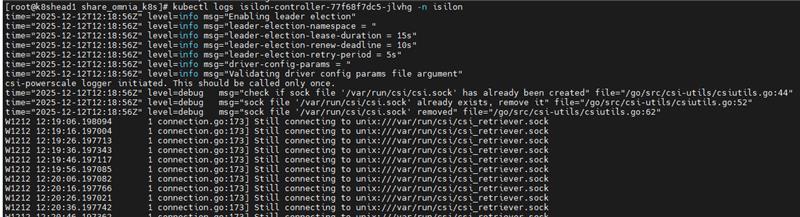
PowerScale (Isilon) CSI controller pod in CrashLoopBackOff after node reboot.

Resolution
Inspect recent logs from the controller deployment:
kubectl logs deploy/isilon-controller -n isilon --all-containers=true | tail -n 60
Restart the Isilon controller deployment:
kubectl rollout restart deployment isilon-controller -n isilon
Restart the Isilon node daemonset:
kubectl rollout restart daemonset isilon-node -n isilon
5.3 Missing PowerScale CSI Driver
Cause
Driver not listed in software_config.json.
Required Entry
{
  "name": "csi_driver_powerscale",
  "version": "v2.15.0",
  "arch": ["x86_64"]
}
For more information on deploying the Dell CSI-PowerScale driver, see Deploy CSI drivers for Dell PowerScale Storage Solutions
6. Slurm Issues
6.1 Nodes Entering DRAINED State
Cause
Epilog script not executable.
Resolution
chmod 0755 /etc/slurm/epilog.d/logout_user.sh
scontrol reconfigure
6.2 Slurm Nodes Cannot Contact Controller
Cause
Nodes booted before controller.
Resolution
scontrol reconfigure
systemctl restart slurmd
6.3 Missing Controller Groups / Missing slurm.conf
Resolution
Update
pxe_mapping.csvwith controller groupsChoose different backup or create new one
6.4 LDMS Metrics Missing
Checks
kubectl logs -n telemetry nersc-ldms-aggr-0
kubectl logs -n telemetry nersc-ldms-store-slurm-cluster-0
sudo systemctl status ldmsd.sampler.service
/opt/ovis-ldms/sbin/ldms_ls ...
6.5 NVIDIA GPU, CUDA, and DCGM Issues
nvidia-smi Not Found or Driver Not Communicating
Symptom
nvidia-smi: command not found or nvidia-smi exits with a non-zero return code
Probable cause
NVIDIA driver installation failed during provisioning, or GPU hardware is absent on this node
Resolution
Verify GPU hardware is present on the node. If confirmed present, re-install the driver:
dnf install -y cuda-drivers
Review /var/log/nvidia_install.log for error details.
CUDA Toolkit Not Available on Node (nvcc Not Found)
Symptom
nvcc: command not found or /usr/local/cuda is empty
Probable cause 1
Toolkit installation did not complete on the designated installer node due to a repository or NFS error
Probable cause 2
NFS mount for the CUDA toolkit was not established at provisioning time
Resolution
Verify the NFS mount at /usr/local/cuda is present:
mount | grep cuda
If absent, re-mount manually. If the toolkit is not installed on the NFS share, review /var/log/cuda_toolkit_install.log on the installer node.
CUDA Toolkit NFS Mount Failed
Symptom
/usr/local/cuda is empty or not mounted after provisioning
Probable cause
NFS server was unreachable at provisioning time, or the NFS export is not configured with no_root_squash
Resolution
Verify NFS server reachability from the node. Verify the NFS export includes no_root_squash. Re-mount manually:
mount -t nfs <NFS_SERVER>:<path>/hpc_tools/cuda /usr/local/cuda
Verify the fstab entry is present for persistence.
nvidia-dcgm Service Inactive or Failed
Symptom
systemctl status nvidia-dcgm shows inactive or failed state
Probable cause 1
DCGM package installation failed due to an unavailable repository or a CUDA version mismatch
Probable cause 2
The NVIDIA driver was not functional at the time DCGM attempted to start
Resolution
Verify driver is functional: nvidia-smi. Identify the installed CUDA version: nvidia-smi | grep "CUDA Version". Re-install the matching DCGM package and restart the service. Review /var/log/dcgm_setup.log for errors.
DCGM Not Installed (dcgm.metrics_enabled Disabled)
Symptom
nvidia-dcgm service is not present on Slurm node, and /var/log/dcgm_setup.log is missing
Probable cause
dcgm.metrics_enabled is set to false under telemetry_sources in telemetry_config.yml, so Omnia intentionally skips DCGM installation during Slurm node cloud-init
Resolution
Set dcgm.metrics_enabled: true under telemetry_sources in input/telemetry_config.yml, re-run provisioning for affected Slurm nodes, then validate with systemctl status nvidia-dcgm and dcgmi discovery -l
DCGM Package Version Mismatch
Symptom
DCGM package installation fails with No match for argument or No packages found
Probable cause
The CUDA major version on the node does not have a matching datacenter-gpu-manager-4-cuda<N> package available in the configured local repository
Resolution
Verify the CUDA version: nvidia-smi | grep "CUDA Version". Confirm the corresponding DCGM package is present in the local Pulp repository. Update local_repo_config.yml to include the correct DCGM package version and re-run local_repo.yml.
nvidia-peermem Not Loading
Symptom
lsmod does not show nvidia_peermem; workloads requiring GPUDirect RDMA fail to initialize
Probable cause 1
Kernel headers were not available at provisioning time, causing the DKMS build to fail
Probable cause 2
Base NVIDIA kernel modules were not loaded prior to nvidia-peermem load attempt
Resolution
Verify kernel headers:
ls /lib/modules/$(uname -r)/build
Install if missing:
dnf install -y kernel-devel-$(uname -r)
Load the module:
modprobe nvidia-peermem
Review /var/log/nvidia_peermem_install.log for details.
Note
If RDMA is not required for any workload on this node, this warning is non-blocking.
6.6 Benchmark assets missing on Slurm nodes
Symptom
Benchmark tool directories are missing or incomplete under
/hpc_tools.Expected benchmark artifacts are not visible on login/compiler/compute nodes.
Possible causes
Shared NFS path (
/hpc_tools) is not mounted or not accessible.pull_benchmarks.shorbenchmark_tools.listis missing under/hpc_tools/scripts.Pulp mirror endpoint is unreachable from the node.
Required benchmark content is not available in local repository/Pulp.
Tool directory already exists and contains files (script skips re-download by design).
Architecture mismatch (for example,
msr-safeonaarch64, which is skipped by design).
Resolution
Verify NFS and scripts path:
ls -ld /hpc_tools
ls -l /hpc_tools/scripts
Expected files:
/hpc_tools/scripts/pull_benchmarks.sh/hpc_tools/scripts/benchmark_tools.list
Run runtime staging script and review output:
/hpc_tools/scripts/pull_benchmarks.sh
Review runtime log:
tail -n 200 /var/log/pull_benchmarks.log
Validate staged benchmark directories:
ls -l /hpc_tools
ls -l /hpc_tools/osu-micro-benchmarks /hpc_tools/imb /hpc_tools/likwid /hpc_tools/papi /hpc_tools/geopm /hpc_tools/sionlib
Note
msr-safe is expected only on x86_64.
If a tool was skipped as already present:
Remove that tool directory only if refresh is required.
Re-run
/hpc_tools/scripts/pull_benchmarks.sh.
7. Telemetry Issues
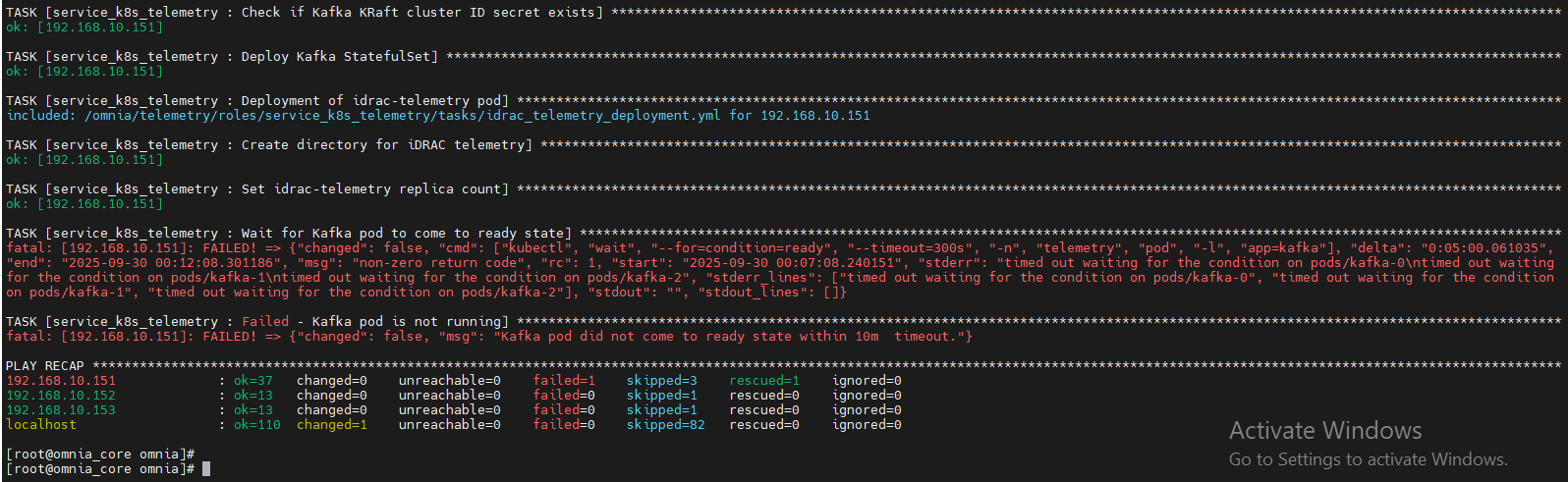
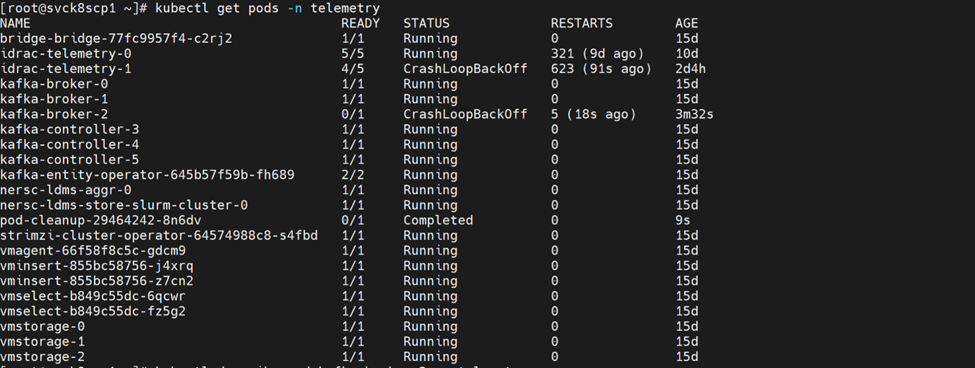
7.1 Kafka Pods CrashLoopBackOff
Causes
No service kube nodes
Missing CSI driver
PV full
Resolution
Ensure service kube nodes are booted
Add PowerScale CSI driver
Increase Kafka volume and configure log retention
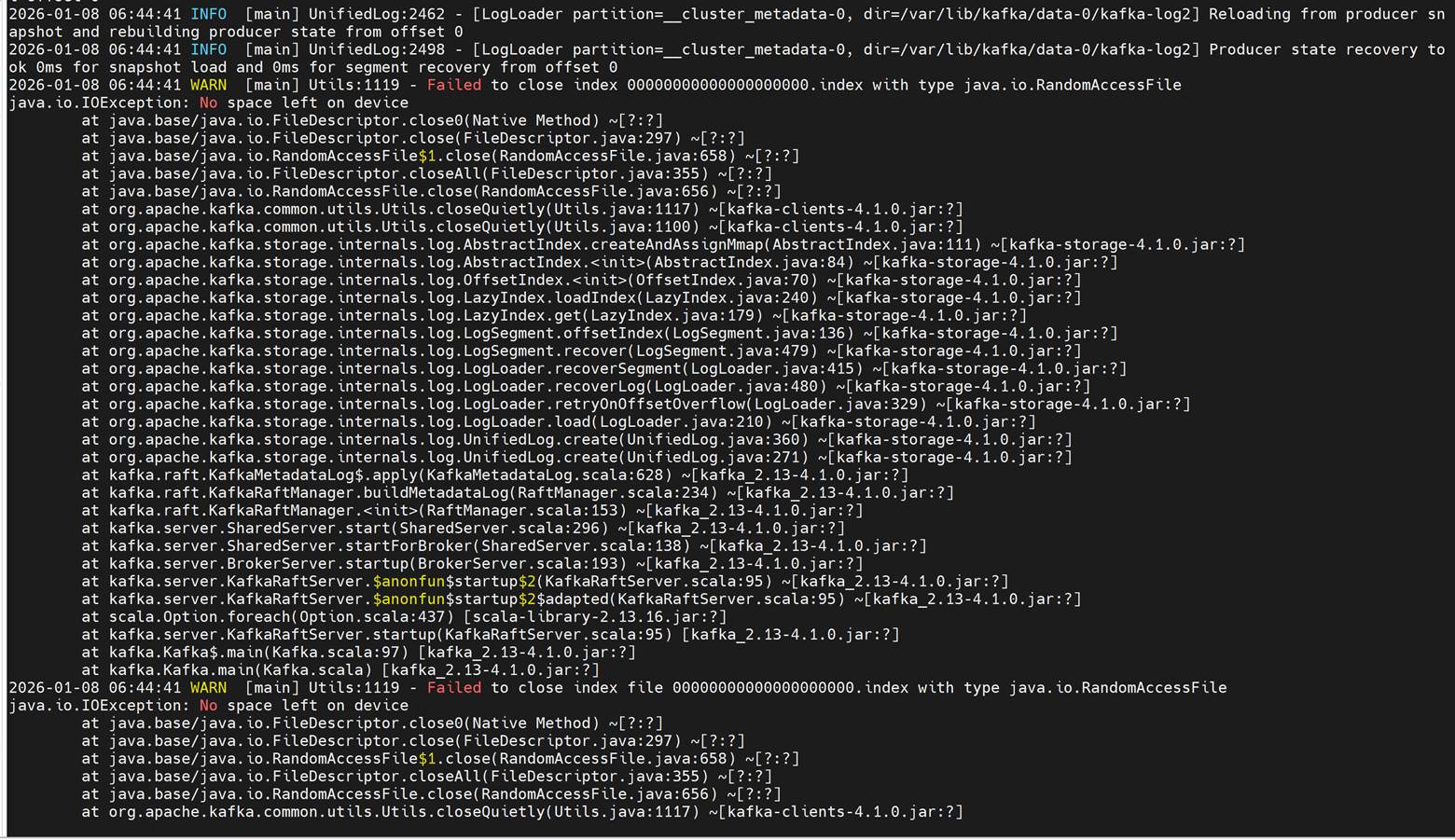
7.2 Kafka “No space left on device”
Symptoms
Cause
Configured persistence_size for Kafka reaches capacity limit.
Resolution
The default 8Gi persistent volume size is suitable for small clusters (typically fewer than 5 nodes). For larger clusters, increase the persistence_size and configure Kafka retention settings log_retention_hours and log_retention_bytes so that old logs are deleted before the persistent volume reaches its limit.
8. Authentication Issues
8.1 LDAP Login Fails After User Creation
Cause
Whitespace in LDIF.
Resolution
cat -vet <filename>
# remove whitespace
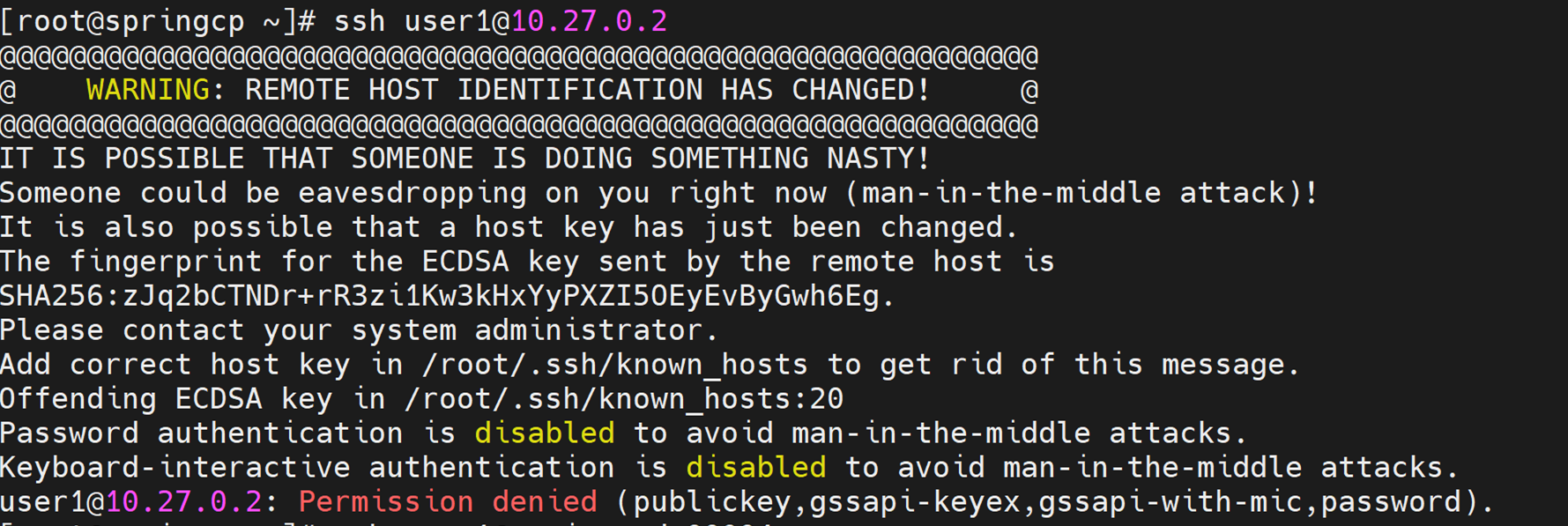
8.2 OpenLDAP Login Fails
Cause
Stale SSH key.
Resolution
ssh-keygen -R <hostname>
9. OpenCHAMI Issues
9.1 Certificate Expiration
Resolution
sudo openchami-certificate-update update <OIM_hostname>.<domain>
sudo systemctl restart openchami.target
9.2 Token Expired
Resolution
export <OIM_HOSTNAME>_ACCESS_TOKEN=$(sudo bash -lc 'gen_access_token')
9.3 provision.yml Fails - prepare_oim Needs to be Executed
Cause
The OpenCHAMI container is not up and running.
Resolution
Perform a cleanup using oim_cleanup.yml and re-run the prepare_oim.yml playbook to bring up the OpenCHAMI containers. After prepare_oim.yml playbook has been executed successfully, re-deploy the cluster using the steps mentioned in the Omnia deployment guide.
10. General Issues
10.1 Playbook Fails Due to HW/Network/Storage
Resolution
Fix underlying issue → re-run playbook.
10.2 Graceful Shutdown of Omnia Cluster
Procedure
Shutdown compute nodes first
Shutdown OIM last
On startup, power on OIM first → then compute nodes
10.3 Licensing Requirements
Resolution
While Omnia playbooks are licensed by Apache 2.0, Omnia deploys multiple software that are licensed separately by their respective developer communities. For a comprehensive list of software and their licenses, click here.
10.4 Troubleshooting Logs
For more information, see Logs.
10.5 Local Repository Package Download Issues
The
local_repo.ymlplaybook generates and provides log files as part of its execution. For example, if the local repository is partially unsuccessful for OpenLDAP, analyze the issue using the following steps:
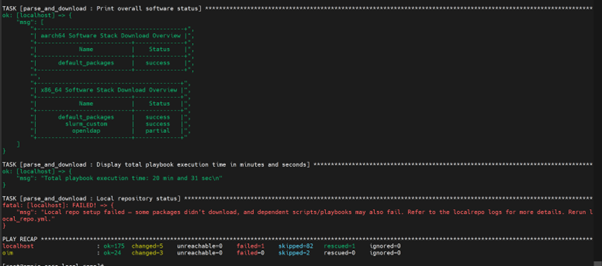
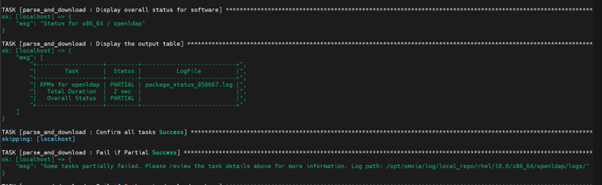
To view the overall download status of all software in the .csv format, run the following command:
/opt/omnia/log/local_repo/<cluster_os>/<cluster_os_version>/<arch>/software.csv
Example:
/opt/omnia/log/local_repo/rhel/10.0/x86_64/software.csv

To view the overall download status of all packages and the log filenames for a specific software, run the following command:
/opt/omnia/log/local_repo/rhel/10.0/x86_64/<sw>_task_results.log
Example: For nfs:
/opt/omnia/log/local_repo/rhel/10.0/x86_64/openldap_task_results.log

To view the package level status, run the following command:
/opt/omnia/log/local_repo/<cluster_os>/<cluster_os_version>/<arch>/<sw>/status.csv
Example:
/opt/omnia/log/local_repo/rhel/10.0/x86_64/openldap/status.csv

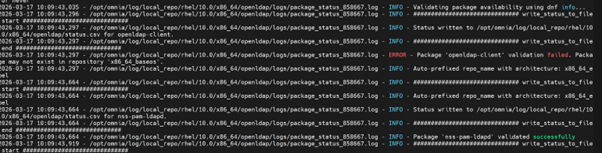
To view the issues information and the reason for job being unsuccessful, see the
package_status_<pid>.logfile mentioned in the<sw>_task_result.log.
Example:
/opt/omnia/log/local_repo/rhel/10.0/x86_64/openldap/logs/package_status_858667.log
Why does the local_repo.yml playbook execution fail at TASK [parse_and_download : Display Failed Packages] ?

Cause: This issue is encountered if Omnia fails to download any software package while executing local_repo.yml playbook. Download failures can occur if:
The URL to download the software packages mentioned in the
<cluster_os_type>/<cluster_os_version>/<software>.jsonis incorrect or the repository is unreachable.The provided Docker credentials are incorrect or if you encounter a Docker pull limit issue. For more information, click here.
If disk space is insufficient while downloading the package.
Resolution: Re-run the local_repo.yml playbook while ensuring the following:
URL to download the software packages mentioned in
<arch>/<cluster_os_type>/<cluster_os_version>/<software>.jsonis correct, and the repository is reachable.Docker credentials provided in
input/omnia_config_credentials.ymlare correct.Sufficient disk space is available while downloading the package. For disk space considerations, see the Omnia installation guide.
If the local_repo.yml is executed successfully without any package download failures, a Successful message is displayed as shown below:

10.6 InfiniBand Issues
Symptoms
InfiniBand ports stuck in Initializing state after boot.
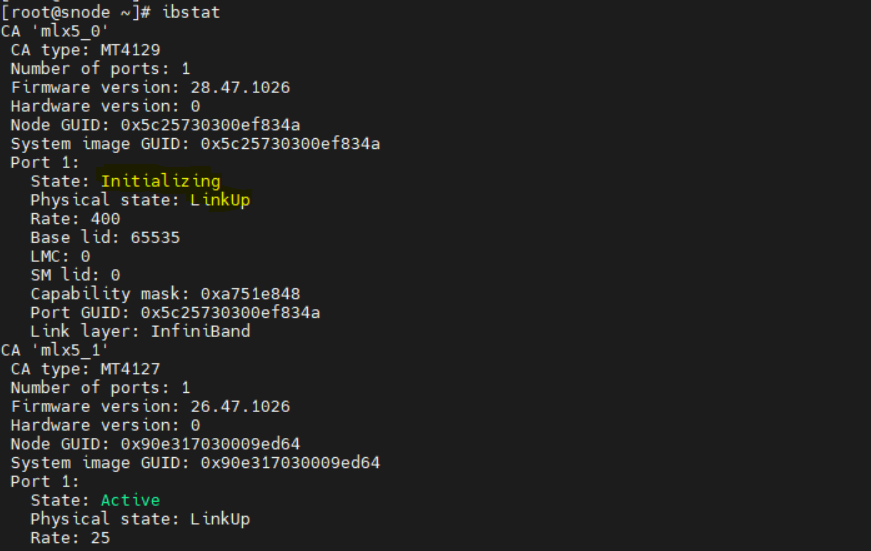
Cause
The Open Subnet Manager (OpenSM) service is not running on the InfiniBand (IB) switch.
Resolution
Ensure that the Open Subnet Manager service is enabled and running on the InfiniBand switch.
After enabling OpenSM on the IB switch, do the following: * PXE boot all the IB NIC based nodes. * Run the following command on the host:
ibstat* Verify that the InfiniBand ports state transition to:State: Active
10.7 System Recovery Issues
Omnia containers not coming up after OIM reboot
Cause
The Admin NIC on the OIM may have its autoconnect settings disabled (autoconnect=no), which stops it from reconnecting automatically after a reboot.
Resolution
Ensure that the Admin NIC on the OIM is configured with autoconnect=yes so it automatically reconnects after reboot. If you changed this configuration, reboot your OIM once to nullify any cache-related or stale configuration issues.
PostgreSQL container deployment fails after cleanup
Cause
Database initialization issues when existing data is present.
Resolution
To reuse the existing PostgreSQL database data available at
postgres_data_dir, re-runprepare_oim.ymlusing the same PostgreSQL database credentials that you used in the previous deployment.To delete the existing PostgreSQL database data and create a new one, run the following commands:
ansible-playbook utils/oim_cleanup.yml -e postgres_backup=false
The playbook deletes the PostgreSQL data at postgres_data_dir and the associated data and log files. After cleanup completes, re-run prepare_oim.yml to deploy a new postgres_container_name container.
10.8 Connectivity Issues
local_repo.yml fails with connectivity errors
Cause
The OIM was unable to reach a required online resource due to a network glitch.
Resolution
Verify all connectivity and re-run the playbook.
Software installation fails with checksum error
Cause
A local repository for the software has not been configured by the local_repo.yml playbook.
Resolution
Re-run the
local_repo.ymlplaybook with proper inputs to download the software package to the Pulp repository.Once the local repository has been configured successfully, re-run the failed installation script.
11. Upgrade and Rollback Issues
11.1 Lock File Issues
Upgrade fails: “A rollback is currently in progress”
Symptoms
The upgrade playbook aborts with the message: A rollback is currently in progress. Cannot start an upgrade.
Causes
The file /opt/omnia/.data/rollback_in_progress.lock exists, indicating a rollback is either running or was previously interrupted without cleanup.
Resolution
Check if a rollback process is actually running:
ps aux | grep rollback
If no rollback process is active, the lock is stale. Remove it manually:
rm /opt/omnia/.data/rollback_in_progress.lock
Rerun the upgrade playbook.
Rollback fails: “An upgrade is currently in progress”
Symptoms
The rollback playbook aborts with the message: An upgrade is currently in progress. Cannot start a rollback.
Causes
The file /opt/omnia/.data/upgrade_in_progress.lock exists.
Resolution
Check if an upgrade process is actually running:
ps aux | grep upgrade
If no upgrade process is active, remove the stale lock:
rm /opt/omnia/.data/upgrade_in_progress.lock
Rerun the rollback playbook.
11.2 Manifest Issues
Manifest shows “partial” status after upgrade
Symptoms
The upgrade completes but upgrade_status is partial instead of completed.
Causes
One or more components did not reach completed or skipped status.
Resolution
Check which components are not completed:
cat /opt/omnia/.data/upgrade_manifest.yml
Review the component status to identify the failed component.
After fixing the issue, rerun the full upgrade. Already-completed components are skipped automatically:
cd /omnia/upgrade
ansible-playbook upgrade.yml
Manifest shows “partial” status after rollback
Symptoms
The rollback completes but rollback_status is partial instead of completed.
Causes
One or more components did not reach completed or skipped status.
Resolution
Check which components are not completed:
cat /opt/omnia/.data/rollback_manifest.yml
Review the component status to identify the failed component.
After fixing the issue, rerun the full rollback. Already-completed components are skipped automatically:
cd /omnia/rollback
ansible-playbook rollback.yml
Manifest file is missing or corrupted
Symptoms
The playbook fails because upgrade_manifest.yml or rollback_manifest.yml cannot be parsed.
Resolution
Check the manifest file for syntax errors:
cat /opt/omnia/.data/upgrade_manifest.yml
If corrupted, remove the manifest to start fresh:
rm /opt/omnia/.data/upgrade_manifest.yml
Rerun the playbook. A new manifest will be initialized from
oim_metadata.yml.
Caution
Removing the manifest means all component statuses are reset to pending. Previously completed components will be re-executed.
11.3 Component-Specific Issues
OIM upgrade fails
Symptoms
The oim component fails during upgrade.
Resolution
Check the playbook output for the specific error.
Verify
oim_metadata.ymlis populated correctly:
cat /opt/omnia/.data/oim_metadata.yml
Ensure the
omnia_corecontainer is running and accessible:
podman ps | grep omnia_core
After fixing the issue, rerun:
cd /omnia/upgrade
ansible-playbook upgrade.yml
Kubernetes upgrade fails
Symptoms
The k8s component fails during upgrade.
Resolution
Verify cluster health before retrying:
kubectl get nodes
kubectl get pods -A | grep -v Running
Ensure all nodes are reachable and in a
Readystate.Check for pending pods or stuck resources.
After resolving, rerun:
cd /omnia/upgrade
ansible-playbook upgrade.yml
Build image fails for aarch64 — missing inventory
Symptoms
The build_image component fails with: “aarch64 functional groups detected in pxe_mapping_file but no hosts found in ‘admin_aarch64’ inventory group” or “The inventory group ‘admin_aarch64’ does not exist or has no hosts.”
Cause
The PXE mapping file contains aarch64 functional groups, but the upgrade was run without an inventory file containing the [admin_aarch64] group.
Resolution
Create an inventory file with the
[admin_aarch64]group containing exactly one ARM admin node:[admin_aarch64] <arm_admin_node_ip>
Re-run the upgrade with the inventory file:
cd /omnia/upgrade
ansible-playbook upgrade.yml -i <inventory_file>
Note
The [admin_aarch64] group must have exactly one host. NFS must be configured on the OIM for aarch64 image building.
Target core container image is missing
Symptoms
omnia.sh --upgrade or omnia.sh --rollback aborts reporting that the required omnia_core image is not available locally.
Cause
The container image for the target version has not been built on the OIM host.
Resolution
Confirm which image tags are available:
podman images | grep omnia_core
If the required image is missing, build it on the OIM host (see Build the Omnia 2.2.0.0 Core Container Image in the Upgrade guide):
git clone -b omnia-container-v2.2.0.0 https://github.com/dell/omnia-artifactory.git
cd omnia-artifactory
./build_images.sh core core_tag=2.2 omnia_branch=v2.2.0.0
Re-run the
omnia.shcommand.
Kubernetes rollback fails
Symptoms
The k8s component fails during rollback.
Resolution
Verify the control plane is reachable:
kubectl get nodes
Confirm the backup directory referenced in
rollback_manifest.ymlexists and is accessible.After resolving, rerun the full rollback. Already-completed components are skipped automatically:
cd /omnia/rollback
ansible-playbook rollback.yml
Slurm or login nodes do not recover after rollback reboot
Symptoms
The rollback summary reports one or more Slurm/login nodes as unreachable, reboot-failed, or sinfo not responding.
Cause
A node did not boot back with the restored 2.1 configuration, or Slurm services did not start after reboot.
Resolution
Review the node status report printed at the end of the Slurm rollback.
For unreachable nodes, verify power and network connectivity.
For
sinfofailures, check the Slurm service on the node and reconfigure:
systemctl restart slurmd
scontrol reconfigure
Re-run the full rollback. Nodes that already rebooted successfully are not rebooted again:
cd /omnia/rollback
ansible-playbook rollback.yml
Note
There is no standalone provision rollback. Cloud-Init and BSS boot configuration is restored within the Slurm and Kubernetes rollbacks. If a node’s boot configuration appears incorrect after rollback, rerun the rollback for the corresponding component (slurm or k8s).
11.4 General Troubleshooting Steps
Check playbook logs
Increase Ansible verbosity for detailed output:
cd /omnia/upgrade
ansible-playbook upgrade.yml -vvv
Review state files
All state files are stored in /opt/omnia/.data/:
ls -la /opt/omnia/.data/
cat /opt/omnia/.data/upgrade_manifest.yml
cat /opt/omnia/.data/rollback_manifest.yml
cat /opt/omnia/.data/oim_metadata.yml
Check archived manifests
Previous manifests are archived for history:
ls /opt/omnia/.data/archive/
Reset upgrade/rollback state
To completely reset the upgrade/rollback state and start fresh:
Caution
This will discard all upgrade/rollback progress. Use only as a last resort.
rm -f /opt/omnia/.data/upgrade_manifest.yml
rm -f /opt/omnia/.data/rollback_manifest.yml
rm -f /opt/omnia/.data/upgrade_in_progress.lock
rm -f /opt/omnia/.data/rollback_in_progress.lock
Verify oim_metadata.yml
The oim_metadata.yml file is the source of truth for version information. Ensure it contains:
cat /opt/omnia/.data/oim_metadata.yml
Expected fields:
omnia_version— Currently installed versionprevious_omnia_version— Previous versionupgrade_backup_dir— Path to the backup directory
Note
oim_metadata.yml is read-only for upgrade and rollback flows. It is never modified by the playbooks. If the version information is incorrect, it must be fixed manually before rerunning.
If you have any feedback about Omnia documentation, please reach out at omnia.readme@dell.com.