Deploy CSI drivers for Dell PowerScale Storage Solutions
Dell PowerScale is a flexible and secure scale-out NAS (network attached storage) solution designed to simplify storage requirements for AI and HPC workloads. To enable the PowerScale storage solution on the Kubernetes clusters, Omnia installs the Dell CSI PowerScale driver (version 2.15.0) on the nodes using helm charts. Once the PowerScale CSI driver is installed, the PowerScale nodes can be connected to the Kubernetes clusters for storage requirements. To know more about the CSI PowerScale driver, click here.
Note
Omnia doesn’t configure any PowerScale device via OneFS (operating system for PowerScale). Omnia configures the deployed Kubernetes cluster to interact with the PowerScale storage.
PowerScale SmartConnect [Optional]
To utilize the PowerScale SmartConnect hostname, it is necessary for the user to have an upstream DNS server that includes delegation mappings of hostname to PowerScale IP addresses. During the provisioning of cluster nodes, users can specify the IP of the upstream
DNSserver in the/opt/omnia/input/project_default/network_spec.ymlfile. This ensures that the Omnia cluster recognizes and is aware of the upstream DNS server, enabling the use of PowerScale SmartConnect hostname functionality. For example:--- Networks: - admin_network: oim_nic_name: <network name> netmask_bits: "24" primary_oim_admin_ip: "172.16.107.254" primary_oim_bmc_ip: "" dynamic_range: "172.16.107.201-172.16.107.250" dns: [<'upstream DNS server'>] Example: dns: ["10.x.x.x", "11.x.x.x"]
If you did not specify the upstream DNS server during the provisioning process and wish to utilize PowerScale SmartConnect afterwards, first add the upstream DNS server IP to the
DNSentry in/opt/omnia/input/project_default/network_spec.ymland then run thediscovery.ymlplaybook again.
Prerequisites
Ensure that the storage and data networks are configured correctly via DHCP.
Upstream DNS resolution must be available from both the admin (PXE) and storage networks.
Verify that the PowerScale system is operational.
Download the
secret.yamlfile template from the following command:wget raw.githubusercontent.com/dell/csi-powerscale/refs/heads/release/v2.15.0/samples/secret/secret.yaml
Update the following parameters in the
secret.yamlfile as per your cluster details and keep the rest as default values. For example:clusterName: <desired cluster name>
endpoint: <endpoint_IP>
Note
If PowerScale SmartConnect hostname is configured, user can provide the PowerScale hostname for
endpoint. Otherwise user can provide PowerScale IP address as well. Ensure that the Powerscale hostname is reachable from OIM.endpointPort: <endpoint_port>
isDefault: true
Note
In secret.yaml file, do not update or change the values for the username and password field. It is being read from the
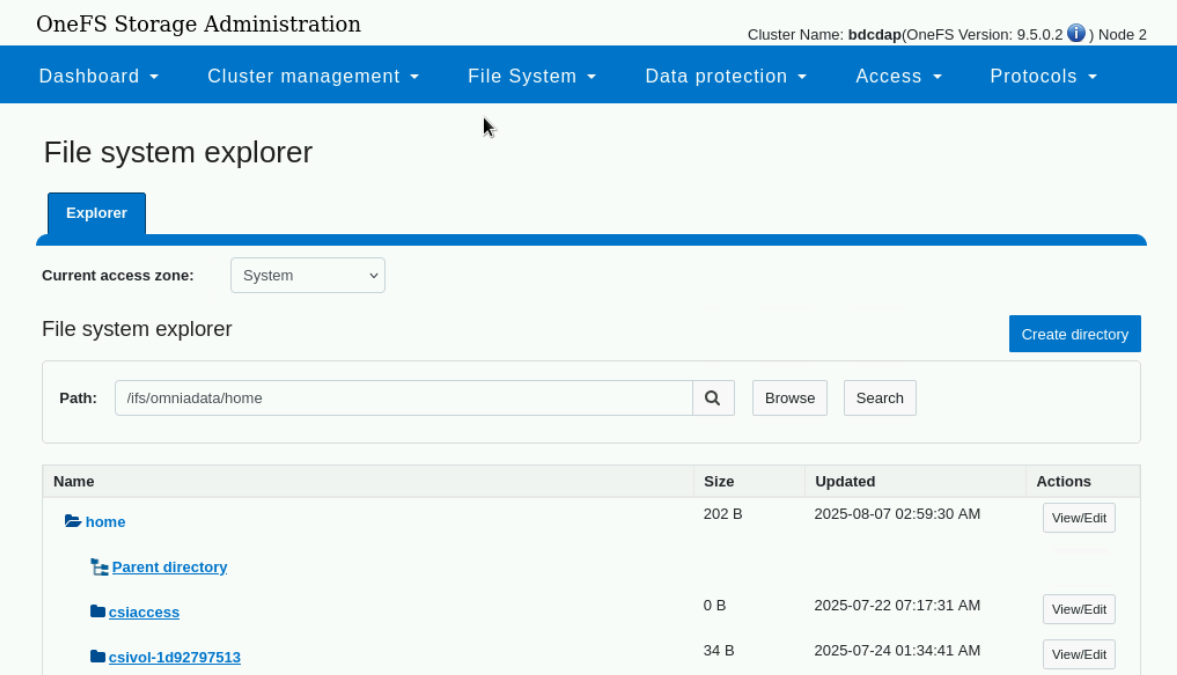
omnia_config_credentials.ymlfile.Reference values from OneFS portal:
Download the
values.yamlfiles template using the following command:wget https://raw.githubusercontent.com/dell/helm-charts/csi-isilon-2.15.0/charts/csi-isilon/values.yaml
Update the following parameters in the
values.yamlfile and keep the rest as default values. Refer the below sample values:controllerCount: 1
replication:
enabled: false
snapshot:
enabled: true
resizer:
enabled: false
healthMonitor:
enabled: false
dnsPolicy: Default
enableQuota: false
endpointPort:8080
skipCertificateValidation: true
isiAccessZone: System
isiPath: /ifs/data/csi
Ensure that
get_config_credentials.ymlplaybook has been executed and theomnia_config_credentialsfile has been generated. Once that’s done, add the values forcsi_usernameandcsi_passwordto that file.Enable
auth_basicfor the PowerScale devices: Omnia authenticates and connects with PowerScale devices using basic authentication. To check and enable basic authentication from PowerScale’s end, do the following:Establish an SSH connection with the PowerScale node.
Execute the following command:
cat /usr/local/apache2/conf/webui_httpd.conf | grep -A 20 "# Platform API"
Check the response and see if
IsiAuthTypeBasic Offis displayed. If yes, it means that basic auth is not enabled from PowerScale. Use the following command to activate it:isi_gconfig -t web-config auth_basic=true
Note
In order to integrate PowerScale solution to the deployed Kubernetes cluster, Omnia requires the following fixed parameter values in values.yaml file:
controllerCount: 1
Replication: false
Snapshot: true
skipCertificateValidation: true
Note
Once the PowerScale CSI driver has been deployed, the parameters in the values.yaml can’t be changed. If the user wants to modify the values.yaml file, they must first uninstall the PowerScale CSI driver from the steps mentioned in the Uninstallation section and then manually re-install the Powerscale with the following commands:
kubectl create namespace isilon
kubectl create secret generic isilon-creds -n isilon –from-file=config=”/opt/omnia/csi-driver-powerscale/secret.yaml”
kubectl apply -f /opt/omnia/csi-driver-powerscale/empty_isilon-certs.yaml
cd csi-powerscale/external-snapshotter/
kubectl apply -f client/config/crd/
kubectl apply -f deploy/kubernetes/snapshot-controller/
./csi-install.sh –namespace isilon –values /opt/omnia/csi-driver-powerscale/values.yaml
kubectl apply -f /opt/omnia/csi-driver-powerscale/ps_storage_class.yml
Steps
Add the
csi_driver_powerscaleentry along with the driver version to the/opt/omnia/input/project_default/software_config.jsonfile:{"name": "csi_driver_powerscale", "version":"v2.15.0", "arch": ["x86_64"]}
Note
By default, the
csi_driver_powerscaleentry is not present in thesoftware_config.json.
Execute the
local_repo.ymlplaybook to download the required artifacts to the OIM:cd local_repo ansible-playbook local_repo.yml
Add the filepath of the
secret.yamlandvalues.yamlfile to thecsi_powerscale_driver_secret_file_pathandcsi_powerscale_driver_values_file_pathvariables respectively, present in the/opt/omnia/input/project_default/omnia_config.ymlfile.Execute the
discovery.ymlplaybook to install the PowerScale CSI driver on theservice_k8s_clusters. See High Availability. To check the prerequisites fordiscovery.yml, see Discovery and Prerequisites
Service Kubernetes cluster
cd discovery
ansible-playbook discovery.yml
Expected Results
After the successful execution of the
discovery.ymlplaybook, the PowerScale CSI driver is deployed in the isilon namespace.Along with PowerScale driver installation a storage class named ps01 is also created. The details of the storage class are as follows:
apiVersion: storage.k8s.io/v1
kind: StorageClass
metadata :
    name: <storage class name>
provisioner: csi-isilon.dellemc.com
reclaimPolicy: Retain
allowVolumeExpansion: true
volumeBindingMode: Immediate
parameters :
    clusterName: <powerscale cluster name > #optional
    AccessZone: System
    AzServiceIP: <PowerScale SmartConnect hostname or PowerScale IP> #optional
    Isipath: <isipath configured in powerscale > #sample: /ifs/data/csi/
    RootClientEnabled: "true"
    csi.storage.k8s.io/fstype: "nfs"
If there are errors during CSI driver installation, uninstall the CSI driver first as per the steps mentioned in the Uninstallation section. Ensure that the prerequisites are met. Manually re-install the Powerscale with the following commands:
1. kubectl create namespace isilon

2. kubectl create secret generic isilon-creds -n isilon --from-file=config="/opt/omnia/csi-driver-powerscale/secret.yaml"

3. kubectl apply -f /opt/omnia/csi-driver-powerscale/empty_isilon-certs.yaml
4. cd csi-powerscale/external-snapshotter/
    kubectl apply -f client/config/crd/
    kubectl apply -f deploy/kubernetes/snapshot-controller/

5. ./csi-install.sh --namespace isilon --values /opt/omnia/csi-driver-powerscale/values.yaml

6. kubectl apply -f /opt/omnia/csi-driver-powerscale/ps_storage_class.yml
Post Installation
[Optional] Create custom storage class
If user wants to create a custom storage class, they can do so by following the sample storage class template.
Sample storageclass template:
apiVersion: storage.k8s.io/v1
kind: StorageClass
metadata :
    name: <storage class name>
provisioner: csi-isilon.dellemc.com
reclaimPolicy: Retain
allowVolumeExpansion: true
volumeBindingMode: Immediate
parameters :
    clusterName: <powerscale cluster name > #optional
    AccessZone: System
    AzServiceIP: <PowerScale SmartConnect hostname or PowerScale IP> #optional
    Isipath: <isipath configured in powerscale > #sample: /ifs/data/csi/
    RootClientEnabled: "true"
    csi.storage.k8s.io/fstype: "nfs"
Note
If PowerScale SmartConnect hostname is configured and the delegated host list is set up in the external DNS server, then the user can provide the PowerScale hostname for
AzServiceIP. Otherwise user can provide PowerScale IP address as well.If there are any changes to the storage class parameters in a PowerScale cluster, the user must update the existing storage class or create a new one as needed.
Apply storage class
Use the following command to apply the storageclass:
kubectl apply -f <storageclass name>
Create Persistent Volume Claim (PVC)
Once the storage class is created, the same can be used to create PVC.
Sample deployment with PVC:
apiVersion: v1
kind: PersistentVolumeClaim
metadata:
  name: pvc-powerscale
spec:
  accessModes:
    - ReadWriteMany
  resources:
    requests:
      storage: 1Gi
  storageClassName: ps01
---
apiVersion: apps/v1
kind: Deployment
metadata:
  name: deploy-busybox-01
spec:
  strategy:
    type: Recreate
  replicas: 1
  selector:
    matchLabels:
      app: deploy-busybox-01
  template:
    metadata:
      labels:
        app: deploy-busybox-01
    spec:
      containers:
        - name: busybox
          image: docker.io/library/busybox:1.36
          command: ["sh", "-c"]
          args: ["while true; do touch /data/datafile; rm -f /data/datafile; done"]
          volumeMounts:
            - name: data
              mountPath: /data
      volumes:
        - name: data
          persistentVolumeClaim:
            claimName: pvc-powerscale
Apply the deployment manifest along with PVC
Use the following command to apply the manifest:
kubectl apply -f <manifest_filepath>
Expected Result:
Once the above manifest is applied, a PVC is created under name
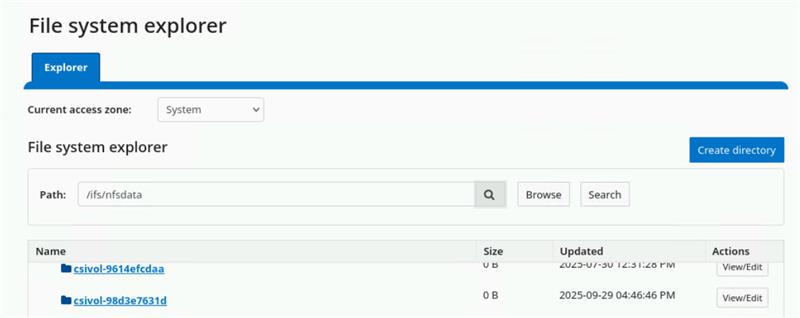
pvc-powerscaleand is inBoundstatus. Use thekubectl get pvc -Acommand to bring up the PVC information. For example:root@node001:/opt/omnia/csi-driver-powerscale/csi-powerscale/dell-csi-helm-installer# kubectl get pvc -A NAMESPACE NAME STATUS VOLUME CAPACITY ACCESS MODES STORAGECLASS VOLUMEATTRIBUTESCLASS AGE default pvc-powerscale Bound csivol-98d3e7631d 1Gi RWX ps01 <unset> 27h
User can also verify the same information from the OneFS portal. In the sample image below, it is mapped with the
VOLUMEentry from the above example:csivol-98d3e7631d:
Uninstallation
To uninstall the PowerScale CSI driver manually, do the following:
Login to the
service_kube_control_planenode.Execute the following command to switch to the
dell-csi-helm-installerdirectory:cd /opt/omnia/csi-driver-powerscale/csi-powerscale/dell-csi-helm-installer
Once you’re inside the
dell-csi-helm-installerdirectory, use the following command to trigger thecsi-uninstallscript:./csi-uninstall.sh --namespace isilon
After running the previous command, the PowerScale driver is removed. But, the secret and the created PVC are not removed. If users want to remove them, they need to do it manually from the “isilon” namespace.
If users don’t want to use PowerScale anymore, they can remove the following as well:
Remove the PowerScale secret by executing the following commands one after the other:
kubectl delete secret isilon-creds -n isilonkubectl delete secret isilon-certs-0 -n isilon
Remove any custom user deployment and PVC that was using PowerScale storage class.
Remove the PowerScale storage class.
Note
In case OneFS portal credential changes, users need to perform following steps to update the changes to the secret.yaml manually:
Update the
secret.yamlfile with the changed credentials.Login and copy the
secret.yamlfile to thekube_control_plane.Delete the existing secret by executing the following command:
kubectl delete secret isilon-creds -n isilon
Create the new secret from the updated
secret.yamlfile by executing the following command:kubectl create secret generic isilon-creds -n isilon --from-file=config=<updated secret.yaml filepath>
Delete the snapshot controller deployment:
kubectl delete deployments snapshot-controller -n kube-system
If you have any feedback about Omnia documentation, please reach out at omnia.readme@dell.com.