Enable repository for x86_64
The build steps must be performed on RHEL 10.0 OS node.
Prerequisites
If you are using RHEL subscription, enable CodeReady Builder (CRB)
subscription-manager repos --enable rhel-10-for-x86_64-baseos-rpms
subscription-manager repos --enable rhel-10-for-x86_64-appstream-rpms
subscription-manager repos --enable codeready-builder-for-rhel-10-x86_64-rpms
Enable repository for aarch64
Prerequisites
Identify the aarch64 node, install the operating system, and assign a free PXE IP address.
If internet connection is not available, do the following:
Enable the network masquerading to provide internet access.
Run the following script:
#!/bin/bash

echo "=== Enable MASQUERADE (Internet Sharing) ==="
echo

read -p "Enter INTERNET interface name " WAN
read -p "Enter PXE interface name " LAN

echo
echo "WAN interface : $WAN"
echo "LAN interface : $LAN"
echo

# Enable IP forwarding
echo "[*] Enabling IP forwarding..."
echo 1 > /proc/sys/net/ipv4/ip_forward

# Add NAT rule
echo "[*] Adding MASQUERADE rule..."
iptables -t nat -A POSTROUTING -o "$WAN" -j MASQUERADE

# Add forward rules
echo "[*] Allowing forwarding..."
iptables -A FORWARD -i "$LAN" -o "$WAN" -j ACCEPT
iptables -A FORWARD -i "$WAN" -o "$LAN" -m state --state RELATED,ESTABLISHED -j ACCEPT

echo
echo "✔ MASQUERADE enabled successfully"
echo "✔ $LAN can now access internet via $WAN"
If you are using RHEL subscription, enable CodeReady Builder (CRB)
subscription-manager repos --enable rhel-10-for-aarch64-baseos-rpms
subscription-manager repos --enable rhel-10-for-aarch64-appstream-rpms
subscription-manager repos --enable codeready-builder-for-rhel-10-aarch64-rpms
Build Slurm repository without GPU support
Install dependencies. The following command is provided as an example:
dnf install -y wget git make gcc gcc-c++ rpm-build autoconf automake python3 python3-devel perl perl-devel readline-devel zlib-devel pam-devel dbus-devel hwloc-devel libbpf-devel pmix pmix-devel jansson-devel json-c json-c-devel libyaml libyaml-devel openssl-devel mariadb-devel systemd-devel munge munge-devel
Download slurm tar file: wget, Download
Run the RPM Build command. Run the following command from the directory containing the downloaded tar file. The following command is provided as an example:
rpmbuild -ta slurm-25.05.2.tar.bz2 --with pmix --define "with_pmix --with-pmix=/usr" --with yaml --define "with_yaml --with-yaml" --without hdf5 --define "without_hdf5 --without-hdf5" --with nvml --define "_with_nvml --with-nvml=/usr/local/cuda" --without ucx --define "without_ucx --without-ucx"
After the build is completed, the RPMs are available at /root/rpmbuild/RPMS/x86_64/ or /root/rpmbuild/RPMS/aarch64/.

To verify the build before hosting, navigate to
/root/rpmbuild/RPMS/x86_64/or/root/rpmbuild/RPMS/aarch64/and run the following command:sudo rpm -ivh slurm-25.05.2-1*.x86_64.rpm slurm-slurmd-25.05.2-1*.x86_64.rpm
Or,
sudo rpm -ivh slurm-25.05.2-1*.aarch64.rpm
slurm-slurmd-25.05.2-1*.aarch64.rpm
All the required .so, cgroup_v2.so files should be available.
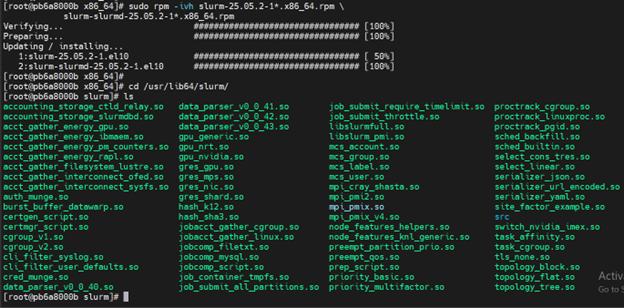
After you verify the build, remove the rpm packages.
sudo dnf remove -y 'slurm'
Build Slurm repository with GPU support
Install dependencies. The following command is provided as an example:
dnf install -y wget git make gcc gcc-c++ rpm-build autoconf automake python3 python3-devel perl perl-devel readline-devel zlib-devel pam-devel dbus-devel hwloc-devel libbpf-devel pmix pmix-devel jansson-devel json-c json-c-devel libyaml libyaml-devel openssl-devel mariadb-devel systemd-devel munge munge-devel
Download slurm tar file: wget, Download
Download the cuda tool kit for x86_64: wget Download
Download the cuda tool kit for aarch64: wget Download
The cuda_13.0.2_580.95.05_linux.run file is downloaded.
After the file is downloaded, run the following command from the directory where the file is downloaded:
bash cuda_13.0.2_580.95.05_linux.run --silent --toolkit --toolkitpath=/usr/local/cuda --override
Run the RPM Build command. Run the following command from the directory containing the downloaded tar file. The following command is provided as an example:
rpmbuild -ta slurm-25.05.2.tar.bz2 --with pmix --define "with_pmix --with-pmix=/usr" --with yaml --define "with_yaml --with-yaml" --without hdf5 --define "without_hdf5 --without-hdf5" --with nvml --define "_with_nvml --with-nvml=/usr/local/cuda" --without ucx --define "without_ucx --without-ucx"
After the build is completed, the RPMs are available at /root/rpmbuild/RPMS/x86_64/ or /root/rpmbuild/RPMS/aarch64/.

To verify the build before hosting, navigate to
/root/rpmbuild/RPMS/x86_64/or/root/rpmbuild/RPMS/aarch64/and run the following command:sudo rpm -ivh slurm-25.05.2-1*.x86_64.rpm slurm-slurmd-25.05.2-1*.x86_64.rpm
Or,
sudo rpm -ivh slurm-25.05.2-1*.aarch64.rpm
slurm-slurmd-25.05.2-1*.aarch64.rpm
All required .so along with the gpu_nvml.so should be available.
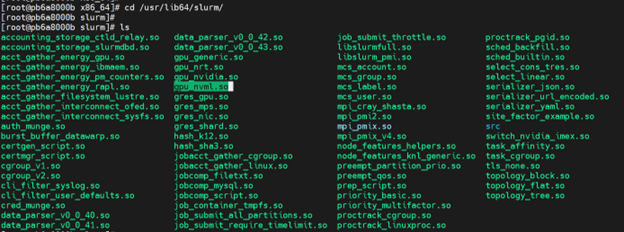
After you verify the build, remove the rpm packages.
sudo dnf remove -y 'slurm'
If you have any feedback about Omnia documentation, please reach out at omnia.readme@dell.com.